
Megapari App
MegaPari can be accessed through an Android APK, a native iOS app where regional availability permits, or a mobile browser. These routes are not interchangeable: an APK cannot run on an iPhone, and a home-screen shortcut remains a website. Compare the platform specifications first, then choose the installation or browser route that suits your device.
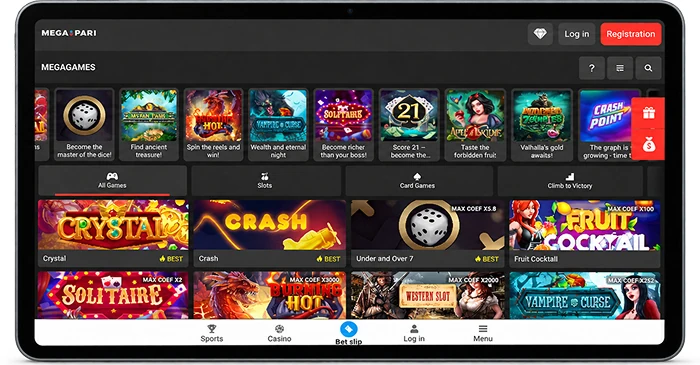
Android App Specifications
| App Detail | Information |
|---|---|
| Distribution | Android APK |
| Download cost | Free |
| Minimum operating system | Android 7.0+ |
| Interface languages | 48: English plus 47 others |
| APK file size | 53.74 MB |
| App version | v255.0.2 (June 2026) |
iOS App Specifications
These specifications apply to the regional iOS app; availability depends on your App Store region.
| App Detail | Information |
|---|---|
| Distribution | Native iOS app; regional availability |
| Download cost | Free |
| Minimum operating system | iOS 15.0+; iPadOS 15.0+ |
| Interface languages | 51, including English, Arabic, Bengali, French, German, Hindi, Indonesian, Malay, Portuguese, Russian, Spanish, Swahili, Turkish, Ukrainian and Uzbek |
| App download size | 239.3 MB |
Android APK and iOS Access Routes
Choose an access route by platform rather than trying to use the same download on every device. The MegaPari site provides a starting point for mobile-access information; obtain any Android installation file through the operator’s official mobile route.
- Android APK: Download the installation file through the operator’s mobile page. An APK is an Android package, not an iOS download.
- Native iOS app: Use the App Store listing linked from the operator’s mobile page if it is available in your App Store region. Operator-provided TestFlight access is a separate, invitation-dependent possibility.
- Mobile browser: Open the service without installing a native app. Add to Home Screen creates a shortcut back to the web experience.
Access can depend on country and account. An available download route does not establish that registration or every service is available to every visitor. If a native download is unavailable, use an accessible browser route rather than a modified installation file or a region-bypass workaround.
Android APK Download and Installation
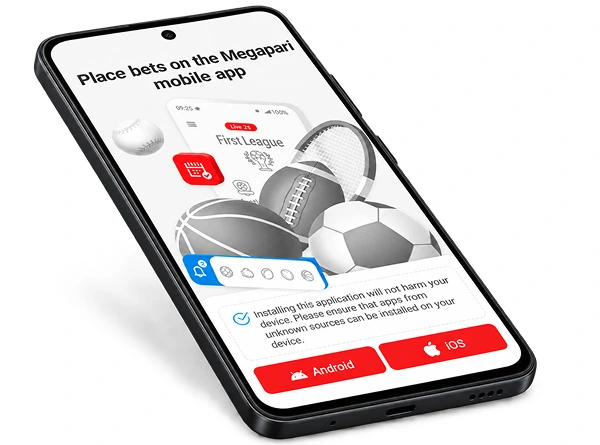
Downloading an APK and installing it are separate steps. Use the operator’s mobile download route, then respond only to installation prompts that apply to the file and device you are using.
- On your Android device, open the operator’s official mobile page and choose its Android APK download route.
- Let the file finish downloading. If the download stops, check your connection and retry through the same route rather than looking for a modified copy.
- Open the downloaded APK with the browser or file manager that received it. If Android requests installation permission for that source, grant it only for this intended installation.
- Follow the device’s installation prompt. Once installation finishes, open the app from your device.
If the file downloads but will not install, first check that the download completed and that any requested permission applies to the browser or file manager opening it. A failed download, an installation refusal and an app that will not launch call for different checks.
Installation Permission and First Launch
Android may ask whether the browser or file manager opening the APK can install apps. This grants permission to that installation source; it is not a reason to disable other device safeguards. After installation, revoke the source’s permission if you enabled it for this task. Follow your device’s settings and prompts rather than relying on a particular menu position.
At first launch, sign in only through the app you intended to install. Keep your password and one-time codes private. Authenticator-based two-factor authentication is available in account security settings on desktop and mobile. It adds an account-access check but does not replace care with credentials. If the installed app will not open, investigate the launch problem rather than repeatedly changing installation permissions.
Device Compatibility and Build Details
Check the software version on your device against the appropriate platform table before downloading. The Android requirement does not describe iPhone or iPad compatibility, and the regional iOS specifications do not establish availability in every App Store region.
- Android architecture: The APK supports armeabi-v7a, x86, arm64-v8a and x86_64. Check your device architecture if installation reports an incompatible package.
- Operating-system version: Find the installed version in your device settings. You can check whether a system update is available, though updating will not resolve every installation failure.
- Storage: An APK file size or App Store download size is not the installed size or a required amount of free storage. If your device reports insufficient space, check its storage information instead of treating a table value as the installation threshold.
The Android version in the table identifies a particular build, not necessarily the APK currently offered by the operator. For a new installation or update, use the operator’s current mobile download route.
iPhone and iPad Access
An iPhone or iPad needs an iOS access route; it cannot install the Android APK. Where the operator-linked native app is available in your App Store region, that is the installation route. Mobile-browser access remains a separate option. Which services you can use may also depend on your country and account.
The iOS table describes a regional native app, not every iOS build in every country. Compare your device’s software version with that table and check whether the operator-linked listing is offered to your App Store account.
App Store and TestFlight Availability
The operator’s mobile page links to a regional App Store listing. Follow that route on your device to check availability; the presence of a link does not guarantee installation in every region. If the listing is available to you, use the App Store to install and update the app.
TestFlight is a separate route only if the operator provides an invitation or access. It is not a public App Store listing. Do not rely on unofficial invitations or change account-region details to work around an unavailable listing. If neither native route is available, consider mobile-browser access instead.
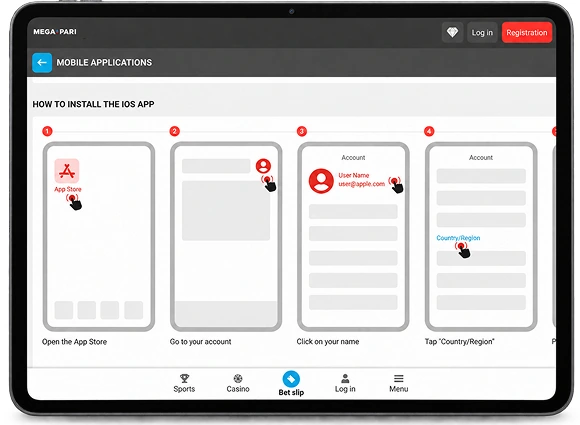
Safari and Home-Screen Shortcut
Safari provides access without a native iOS installation. Open the mobile site in Safari and, if you want a convenient return route, use Add to Home Screen. The resulting icon opens web content; it does not turn the site into the native app.
This matters when something stops working. If a shortcut fails to open the expected page, try opening the site directly in Safari before changing an installed app. A web shortcut depends on a working connection and does not provide offline betting.
Account and App Features
Desktop and mobile access share the same account, so switching devices does not require a separate account solely for mobile use. Once signed in, the available account areas and betting sections include:
- Sportsbook and live betting sections for sports and in-play bets.
- Casino, Live Casino and MegaGames sections, subject to availability for the account.
- Account balance and history.
- Security settings, including authenticator-based two-factor authentication.
These features do not promise that every section is available in every location or that betting works without a connection. The language counts in the specification tables describe app interfaces, not the languages available through customer support. Protect your credentials whichever access route you choose.
Mobile Registration
Registration creates an account; downloading the app or adding a browser shortcut does not. The minimum age is 18, or higher where local rules require. Check that registration is available where you are and provide accurate account details.
- Open an available mobile access route and start registration rather than attempting to sign in with an account you have not created.
- Enter your own details and complete the registration checks presented for your account.
- Protect your credentials and review the account security settings after registration.
If you intend to enter a promotional code during registration, the supplied code is MEGAIN150. The code alone establishes no particular percentage, reward, deadline or eligibility. Check the promotion shown for your account before choosing it.
Separately, an app freebet promotion describes a reward of up to USD 10 after ten qualifying sports bets made in the app. Each qualifying bet must be at least USD 1, and the reward equals the average qualifying stake. A qualifying single bet must have odds of at least 1.40; an accumulator must contain at least two events, each at odds of at least 1.30. Availability is subject to the current app promotion terms. These are the app freebet’s qualifying conditions, not a benefit established by the registration code or conditions borrowed from a welcome offer.
Updates and Troubleshooting
Update the route you actually use. Android APK and App Store installations have different update processes, while a browser shortcut has no native app package to update.
- On Android, return to the operator’s official mobile download route and obtain the APK currently offered there. Install it through the appropriate device prompt. If installation-source permission is required, revoke it afterward.
- On an iPhone or iPad, check the App Store for updates if you installed the operator-linked native app there. If the operator provided TestFlight access, follow the update route supplied with that access.
- For browser access, open the mobile site directly if a saved home-screen shortcut appears stale. Do not try to update a web shortcut with an Android APK.
Match your next check to the point of failure:
- APK download will not complete: Check the connection and retry through the operator’s mobile route before attempting installation.
- APK downloaded but will not install: Confirm the download completed, check Android compatibility, and verify permission for the browser or file manager opening the file.
- Installed app will not launch: Restart the app and check device software and available storage. Reinstalling is not a universal fix, particularly for account-access or service-availability issues.
- Sign-in fails: Recheck your credentials and authenticator code without sharing either with someone offering to fix access.
- iOS listing is unavailable: Check the operator-linked route and availability in your App Store region; use mobile-browser access if appropriate rather than an unofficial installer.
- Web shortcut fails: Open the site directly in Safari to distinguish a shortcut problem from a broader access problem.
If these checks do not resolve an app or account-access issue, use the contact form on the operator’s Contacts page: https://megapari.com/en/information/contacts.
FAQ
- Where should I download the APK?
- Get the Android APK through MegaPari’s official operator mobile download route. Check the route before granting your device permission to install the file, and avoid modified copies.
- Can an Android APK be installed on iOS?
- No. An Android APK cannot be installed on an iPhone or iPad. Use the operator-linked native iOS route if it is available in your App Store region, or access the service through a mobile browser.
- How does a native app differ from a web shortcut?
- A native app is installed through its platform’s app route. A home-screen shortcut opens the mobile website in a browser-based experience; placing its icon on the home screen does not install the native iOS app.
- How can I check device requirements?
- Compare the operating-system requirement in the relevant specification table with the software version shown in your device settings. For an Android compatibility problem, you can also check the device architecture. The listed download size is not a free-storage requirement.
- How do I update the app?
- For Android, obtain the APK currently offered through the operator’s mobile route and install it using any required device permission. For an available operator-linked iOS app, check the App Store. A browser shortcut is not updated as a native app.